
Python Script vs FFmpeg vs Terminal: What’s What?
Python script vs FFmpeg is confusing because they usually show up in the same black window, and it feels like it is all one thing. But they are three different pieces: the terminal is where you type, FFmpeg is the video tool you run, and a Python script is a file of instructions you run. Once you separate them, everything gets way easier.
If you have ever opened a black window full of text, typed something random, and hoped your computer just “gets it,” you are not alone. Most beginners hit this exact wall because these tools often appear together, but they are not the same thing.
Python script vs FFmpeg vs terminal: the simple mental model
Here is the clean way to think about it:
- Terminal (command console) is the place you type commands.
- FFmpeg is the video tool you run from the terminal.
- A Python script is a file of instructions you run from the terminal.
Same window, different jobs.
Image idea to add here:
- File name:
python-script-vs-ffmpeg-vs-terminal-diagram.png - Alt text: Python script vs FFmpeg vs terminal simple mental model diagram
What is the terminal (command console)?
The terminal (also called command line, Command Prompt, or PowerShell) is a text-based way to interact with your computer. You type commands instead of clicking buttons.
Here is the key point:
The terminal is not a programming language.
It is a place where you launch programs and tools.
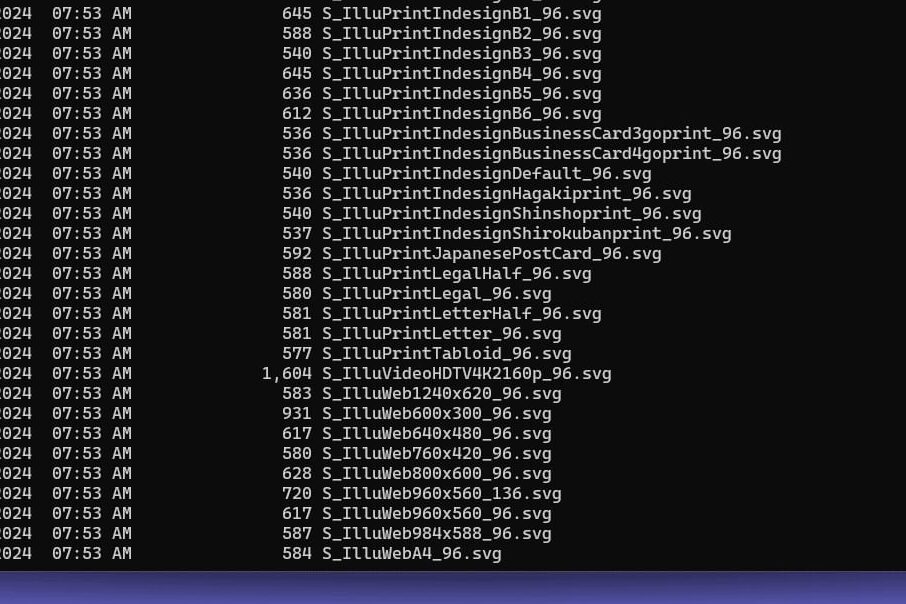
What you actually do in the terminal
Common examples:
- Move between folders
- List files
- Run a program (like Python)
- Run a tool (like FFmpeg)
Think of the terminal as the place you press “start.” The real work happens in the tool you run.
What is FFmpeg?
FFmpeg is an open-source command-line tool made specifically for audio and video processing. It can convert formats, resize, compress, extract audio, trim clips, and more.
Here is the key point:
FFmpeg is not a programming language.
It is a specialized media tool you control by typing commands into the terminal.
What FFmpeg is great at
FFmpeg is perfect for direct, one-time media tasks like:
- Converting one file type to another
- Trimming a clip
- Resizing and compressing
- Extracting audio
If it is a single job, running FFmpeg directly is often the fastest option.
Image idea to add here:
- File name:
ffmpeg-command-terminal-example.png - Alt text: FFmpeg command example in terminal window
External link to add here (authoritative):
- Anchor text: FFmpeg documentation
- Destination: FFmpeg official docs page
What is a Python script?
A Python script is a plain text file that ends in .py. Inside it are instructions written in the Python language. When you run the script, Python executes those instructions from top to bottom.
Recipe analogy time, because it is the easiest way to remember this:
- The .py file is the recipe card
- Python is the chef that follows the recipe exactly
What Python scripts are great at (especially for creators)
Python is general-purpose, which means it can do a lot. For creators, the biggest win is automation.
Python is great when you want to:
- Rename files in bulk
- Loop through folders
- Make decisions (if this, then that)
- Handle errors without everything failing
- Run the same process repeatedly without manual work
External link to add here (authoritative):
- Anchor text: Python scripts
- Destination: Python official documentation for running scripts
Why Python is a batching cheat code (including subfolders)
Where Python really shines is batching.
If you have 50 files spread across a bunch of subfolders, Python can walk the whole directory tree, find what you need, and run the same action on everything automatically. That means no clicking into folders one-by-one and no repeating the same command over and over.
This is the moment most people realize:
If you have ever converted 30 files by hand and thought, “There has to be a better way,” Python is the better way.
Python script vs FFmpeg: how they work together
This is the workflow most people end up using:
- Open the terminal
- Run either:
- an FFmpeg command, or
- a Python script
- FFmpeg or Python does the work
The big connection is this:
Python can control FFmpeg.
Instead of manually typing FFmpeg commands one file at a time, you write a script once, and it runs the FFmpeg work across a folder automatically.
So the relationship looks like this:
- FFmpeg = the media engine
- Python = the automation brain that can run FFmpeg repeatedly
Quick differences (for skimmers)
Terminal
- What it is: a text window where you type commands
- What it does: launches programs and tools
- Does it process video? No. It runs what you tell it to run.
FFmpeg
- What it is: a video and audio processing tool
- What it does: processes media files
- Does it make decisions? No. It does exactly what the command says.
Python script
- What it is: a file of instructions written in Python
- What it does: automates tasks, loops through files, adds logic
- Does it process video by itself? Not usually, but it can call FFmpeg to do it automatically.
When to use what
Use the terminal when you need to run something quickly
- Check a folder
- Run a single command
- Confirm Python or FFmpeg is installed
Use FFmpeg when the task is simple and direct
- Convert one file
- Trim one clip
- Compress one export
Use a Python script when you want leverage
- Batch process a folder
- Automatically include files inside subfolders
- Apply rules like “only MP4s” or “skip already processed files”
- Run the same FFmpeg action across an entire library
Image idea to add here:
- File name:
ffmpeg-vs-python-when-to-use-flowchart.png - Alt text: When to use Python script vs FFmpeg flowchart
Common beginner mistakes (and how to avoid them)
Mistake 1: Thinking the terminal is the tool
The terminal is just the launcher. The actual work is done by Python or FFmpeg.
Mistake 2: Expecting FFmpeg to decide things for you
FFmpeg is powerful, but it is literal. It only does what your command says. It does not choose “the best” settings for your goals.
Mistake 3: Writing a script when one command is enough
If you are converting one file, FFmpeg is usually faster. Bring in Python when you have repetition, batching, or rules.
FAQs: Python scripts, FFmpeg, and the terminal
What’s the difference between a Python script and FFmpeg?
A Python script is a set of instructions saved in a .py file. FFmpeg is a tool that processes audio and video. Python can automate FFmpeg by running it repeatedly across many files.
Is the terminal the same as Python?
No. The terminal is the window where you type commands. Python is a language you run from the terminal.
Can Python replace FFmpeg for video editing?
Python does not replace FFmpeg. Python adds automation, logic, and batching. FFmpeg does the actual media processing.
Why use Python for batch processing videos?
Because Python can scan folders and subfolders, grab only the files you want, and run the same process on everything automatically.
What should I learn first: FFmpeg or Python?
If you want quick wins, learn basic FFmpeg tasks first. If you are drowning in repetitive work, Python is worth it because it helps you batch and automate.
Quick recap and next step
If you remember nothing else, remember this:
- Terminal is where you type commands.
- FFmpeg is the power tool for media files.
- Python scripts are repeatable instructions that can automate everything, including FFmpeg.
Next step: see examples of scripts here (I’ll be adding posts that walk through real script examples you can copy, tweak, and use for your own workflows).